Stick Nodes is a lightweight animation app that helps you build stick-figure scenes frame by frame, then export your work to share anywhere. This guide walks through reliable ways to get it installed, open your first project, and avoid common setup problems on phones, tablets, and desktop-style workflows.
Choose the Safest Download Source
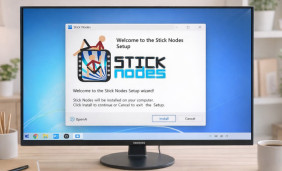
To avoid fake apps and bundled installers, always start from official marketplaces or the developer’s recognized links, and double-check the app name, icon, and reviews. Before you tap anything, verify the source so the Stick Nodes app download and install come from an official store listing.
- Prefer Google Play or the Apple App Store for automatic updates and signature checks.
- Avoid “modded” packages and third-party download mirrors that repackage files.
- Check storage space and OS version first to prevent failed installs.
- If a website forces extra “download managers,” asks for unusual permissions, or redirects repeatedly, treat it as a red flag and leave.
Install on Android (Phones and Tablets)
On Android devices, installing from Google Play is the simplest approach and keeps updates straightforward. On Android, you can complete a quick Stick Nodes install in under a minute if your connection is stable.
Android steps
- Open Google Play and search for the app by name.
- Confirm the developer/publisher details match the legitimate listing.
- Tap Install, then open the app from the store page or your home screen.
- When prompted, allow only the permissions you actually need for your workflow (for example, media access for importing assets).
If you install via an APK (only when you fully trust the source), disable “unknown apps” installation afterward to reduce risk.
Install on iPhone and iPad
On Apple devices, use the App Store so the system can validate the app and manage updates. If you have trouble downloading, confirm you’re signed in, you have enough free storage, and Screen Time or device management policies aren’t blocking installs.
Quick checks for iOS/iPadOS
- Restart the device if the download is stuck on “Waiting.”
- Confirm your Apple ID payment settings if installs require verification.
- Update iOS/iPadOS if the store says the app needs a newer version.
What “Successful Install” Really Means
You’ll know everything is working when the app opens, loads the default interface, and can save a simple test animation. A clean Stick Nodes installation usually succeeds when storage space is free and the OS is updated.
Run a 60-Second First-Launch Test
- Create a new project.
- Add a stick figure and place two keyframes.
- Preview playback to confirm smooth rendering.
- Save the project, close the app, then reopen to confirm the file persists.
Desktop Workflows: Using Windows or a Larger Screen
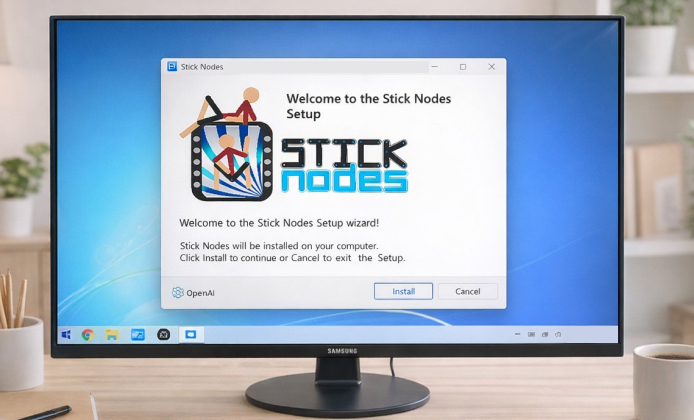
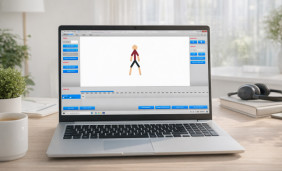
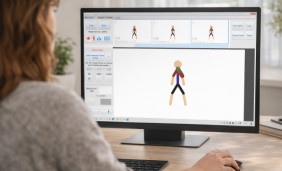
Stick Nodes is primarily a mobile app, but many creators like the precision of a mouse, a big monitor, and easy file management. If you prefer editing with a mouse, you can install Stick Nodes on Windows using an emulator and a synced Google account for convenience.
Performance depends heavily on virtualization and graphics settings, so treat the emulator like a small “Android PC” that needs tuning. For larger screens, many creators install Stick Nodes on PC through a trusted Android emulator with hardware acceleration enabled.
Emulator Setup Tips
- Enable virtualization in BIOS/UEFI (often called Intel VT-x or AMD-V).
- Turn on hardware acceleration inside the emulator settings.
- Allocate enough RAM/CPU cores to avoid choppy previews.
- Use a shared folder feature for easy import/export of assets.
Compatibility and Setup at a Glance
| Platform | Recommended source | What you need | Common issue | Fast fix |
|---|---|---|---|---|
| Android | Google Play | Free storage, stable internet | Download stuck | Clear Play Store cache, retry |
| iOS / iPadOS | App Store | Apple ID, current OS | “Requires newer iOS” | Update OS or use a supported device |
| Windows (via emulator) | Emulator + Play Store | Virtualization, GPU drivers | Laggy preview | Enable acceleration, raise resources |
Problem: “Can’t Install” or “Not Enough Space”
- Delete unused apps or large videos, then reboot.
- Clear cached files (especially messaging apps and browsers).
- Try installing on Wi-Fi instead of mobile data.
Problem: App Opens, Then Crashes
- Update the app and your OS to the latest available version.
- Disable aggressive battery optimizations for the app.
- Remove heavy imported assets and test with a new blank project.
Problem: Imports/Exports Don’t Appear
- Check media permissions (Photos/Files access) and grant only what’s required.
- Use a dedicated export folder so you can find files quickly.
- On emulators, confirm the shared folder path is correct.
Best Practices After Setup
- Create a simple folder structure:
Assets,Projects,Exports. - Back up your project files before major edits or app updates.
- Test export settings early so you don’t discover quality issues at the end.
A good habit is to export a short 3–5 second clip first, then adjust resolution and frame rate before rendering longer scenes.
FAQ
- Is it better to use a phone or a tablet? Tablets usually feel more comfortable for long sessions because of the bigger canvas, while phones are great for quick edits and sketching ideas on the go.
- Do I need an account to use it? Most basic features work without extra accounts, but store-based installs may require signing in to download and update.
- Can I use a mouse and keyboard? On mobile, support varies by device and OS; on a desktop workflow through an emulator, mouse control is generally smoother once acceleration and resources are set properly.
 How to Use Stick Nodes APK on PC for Comfortable Animation
 Stick Figure Animation for Everyone: How to Play on PC
 Stick Nodes Install Guide: Safe Setup, First Launch, and Troubleshooting
 How to Animate Stick Nodes Comfortably on a PC
 What Is Stick Nodes and How to Use?
 Best Apps Similar to Stick Nodes