
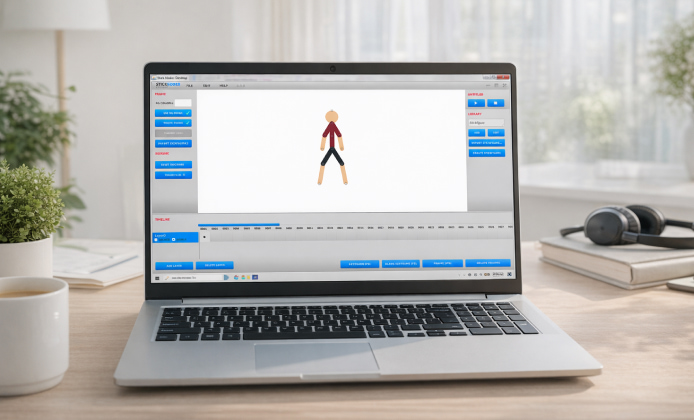
Stick Nodes is best known as a mobile animation app, but many creators prefer a desktop setup for longer sessions, precise editing, and better posture. The good news is that you can build a smooth “PC workflow” by combining the app with an Android emulator, file sharing tools, and a couple of smart habits that keep your projects organized.
Your Main Ways to Use Stick Nodes With a PC
- Android emulator on Windows: run the app in a window, use mouse/keyboard, and export directly to your PC folders.
- Phone + PC companion workflow: animate on your phone/tablet, then transfer exports (videos, GIFs, project files) to PC for editing and archiving.
- Screen mirroring: animate on mobile, but view on a larger monitor for comfort and review.
A practical rule: if you animate for more than 30–45 minutes at a time, the “emulator + PC folders” approach usually saves the most time in the long run.
Method 1: Run Stick Nodes on Windows Using an Android Emulator
An emulator lets you open Android apps on Windows, which means you can animate with a mouse, capture files more easily, and keep everything backed up. Look for an emulator that supports hardware virtualization and lets you map keyboard shortcuts for common actions.
- Enable virtualization in your system (often called Intel VT-x or AMD-V) if it’s disabled.
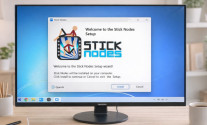
- Install a reputable Android emulator and sign in with a Google account (optional, but helpful for app updates).
- Install Stick Nodes through the emulator’s app store where possible.
- Create a dedicated “Animations” folder on your PC for exports, audio, and references.
- Test a short animation first to confirm playback is smooth before starting a big project.
For projects that rely on mobile testing, the Stick Nodes APK can be useful when you want a consistent package source for your devices and a predictable version for compatibility.
Controls That Feel Good on a PC
- Use a mouse with adjustable DPI for cleaner drag movements.
- If your emulator supports it, bind common actions (undo, onion skin toggles, play/stop) to keys.
- Consider a drawing tablet in “mouse mode” for more natural posing.
Method 2: Animate on Mobile, Finish and Archive on PC
If you like touch controls, you can keep the creative part on your phone/tablet and use the PC for storage, sound editing, thumbnails, and uploading. This method is great when your PC is modest, or when an emulator feels too heavy.
Simple Transfer Options
- USB cable (fast, reliable for large exports)
- Cloud drive (easy version history if you organize well)
- Local network transfer apps (convenient, but keep an eye on stability)
When you’re looking for a clean installer path, a Stick Nodes APK download should always be approached with caution, because unofficial mirrors can bundle unwanted software.
Choosing the Best Workflow for Your Setup
| Workflow | Best for | Trade-offs |
|---|---|---|
| Emulator on Windows | Long sessions, fast exporting, PC-based organization | Needs more CPU/RAM and good virtualization support |
| Mobile animation + PC finishing | Touch workflow, lighter PC load | Extra transfer step between devices |
| Screen mirroring | Reviewing timing and poses on a large display | Not a full PC workflow unless paired with transfers |
Project Organization Tips That Prevent Headaches
Whether you animate in an emulator or on a phone, your “PC side” organization matters. Create one folder per project and keep consistent subfolders like Audio, Exports, References, and Backups. If you use external sound effects, store a copy locally so a broken link never ruins an old project.
- Name versions clearly:
fight_scene_v03beatsfinal_final2. - Export short test clips early to catch timing issues before you animate hundreds of frames.
- Back up major milestones, especially before experimenting with new effects or rigs.
Safety Notes About APK Files
It’s common to see requests like Stick Nodes download APK in forums, but unknown sources are a frequent cause of malware, adware, and broken builds that behave differently from the official release.
If you ever need to install Stick Nodes APK for testing on an emulator, it helps to verify permissions, avoid “modded” packages, and keep your system protected with basic security practices. Before you download APK Stick Nodes from a site you’ve never used, it’s smarter to check whether the same version is available through official channels or trusted app stores first. For cross-device consistency, Stick Nodes APK for Android is easiest to manage when you keep updates predictable and avoid mixing random builds across multiple devices.
Troubleshooting on PC
- Lower emulator resolution and close background apps.
- Enable the emulator’s hardware acceleration options.
- Reduce the number of heavy layers/effects while animating, then restore them for final export.
Mouse Feels Imprecise
- Disable mouse acceleration in Windows for steadier dragging.
- Adjust emulator sensitivity and test different zoom levels while posing.
- Try a tablet or stylus if you do lots of fine adjustments.
Files Are Hard to Find
- Set a fixed shared folder between Windows and the emulator.
- Use a consistent export naming pattern so you can search quickly.
- Keep one “master” project folder on your PC, not scattered across Downloads.
Mini Checklist for a Clean First Setup
- Pick one workflow (emulator-first or mobile-first) and stick with it for a week.
- Create your project folder template on PC.
- Run one short test animation end-to-end: import audio → animate → export → archive.
- Write down your preferred settings so you can recreate them after updates.
With the right setup, Stick Nodes on PC becomes less about “making it run” and more about building a comfortable, repeatable animation pipeline that lets you focus on timing, posing, and storytelling.
 How to Use Stick Nodes APK on PC for Comfortable Animation
 Stick Figure Animation for Everyone: How to Play on PC
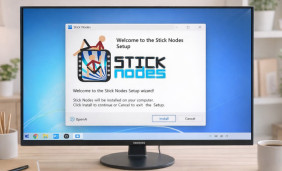 Stick Nodes Install Guide: Safe Setup, First Launch, and Troubleshooting
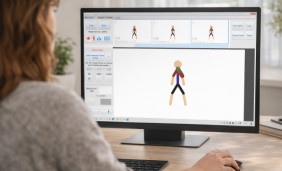 How to Animate Stick Nodes Comfortably on a PC
 What Is Stick Nodes and How to Use?
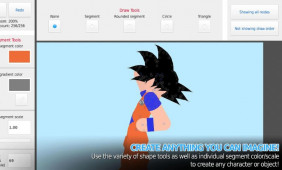 Best Apps Similar to Stick Nodes